
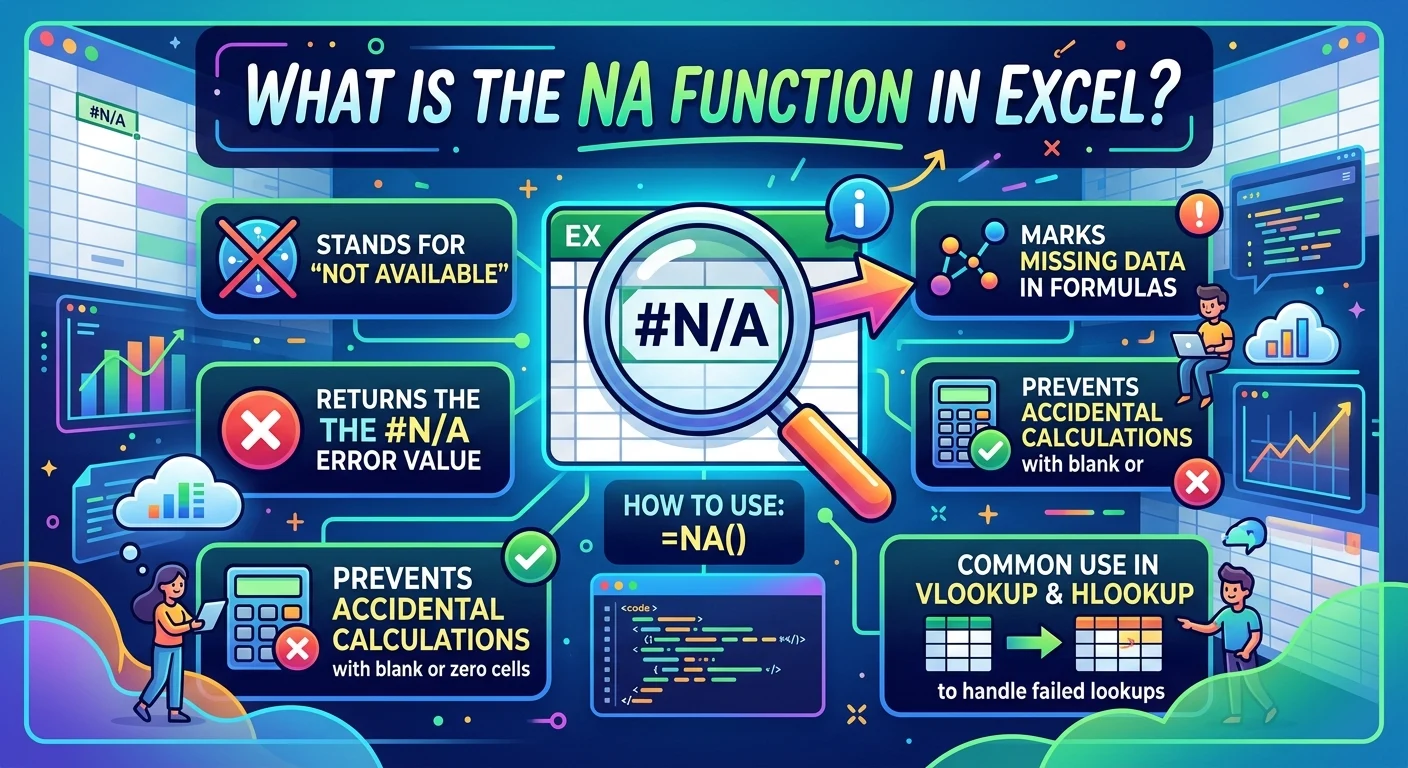
If you are searching for the nai function in Excel supported by which AI tool, you may actually be referring to the NA function in Microsoft Excel, written as =NA(). Excel’s NA function is a built-in worksheet function that returns the #N/A error value when a value is unavailable. It is not itself an AI-powered function.
However, modern AI tools can make working with Excel functions much easier. Microsoft Copilot in Excel can help users create formulas, understand spreadsheet logic, analyze data, and make workbook changes through natural-language instructions. ChatGPT for Excel also provides a spreadsheet-native AI experience for building, updating, and understanding workbooks.
For beginners, the important distinction is simple: NA() belongs to Excel’s traditional formula system, while AI assistants help you understand or use formulas more efficiently. This combination can improve productivity, reduce repetitive work, and make spreadsheet automation more accessible.
What Is the NA Function in Excel?
The NA function is a standard Excel information function. Its purpose is simple: it returns the #N/A error value, which generally indicates that a required value is not available. Microsoft lists NA among Excel’s information functions and documents its syntax as NA().
The formula has no arguments. You simply enter:
=NA()
Excel then displays:
#N/A
This can be useful when you want to clearly mark a cell where information does not exist rather than leaving the cell blank or entering an arbitrary number. For example, imagine a sales report where a product did not have any sales during a particular period. Using NA() can communicate that the information is unavailable rather than suggesting that the sales value is zero.
The distinction matters because zero and unavailable are not always the same thing. A zero may mean that a measurable value is genuinely zero. #N/A, on the other hand, can indicate that the value is not available. That difference can matter when building reports, charts, lookup formulas, and analytical models.
Is NA() an AI Function in Microsoft Excel?
No. NA() is not an AI function. It is a conventional Excel worksheet function that has existed as part of Excel’s formula system for many versions. Microsoft’s documentation identifies it as an information function and explains that it returns the #N/A error value.
The confusion can happen because Excel now includes several AI-powered features. Microsoft Copilot in Excel can work with formulas, data, charts, PivotTables, and workbook editing. That does not mean every Excel function is an AI function. Instead, AI tools can operate alongside traditional spreadsheet functions.
Think of it this way: NA() is a spreadsheet instruction, while Copilot is an AI assistant that can help you work with spreadsheet instructions.
For example, you might ask an AI assistant:
“Explain why this Excel formula returns #N/A.”
The AI can explain the likely reason and suggest appropriate formula changes. The underlying NA() function remains a normal Excel function.
Which AI Tool Supports NA Function Work in Excel?
For current Microsoft Excel workflows, Microsoft Copilot in Excel is one of the most directly integrated AI tools for working with spreadsheet formulas and data. Microsoft says Copilot in Excel can help users build and edit workbooks, generate formulas, analyze information, create charts and PivotTables, and transform data.
Microsoft has also changed its Excel AI approach recently. The standalone =COPILOT() worksheet function was discontinued on September 14, 2026. Microsoft now directs users toward Copilot in Excel through the Copilot pane instead. Existing workbooks containing that function can retain cached results, but recalculation can produce a #NAME? error because the function is no longer recognized.
Another current option is ChatGPT for Excel, which provides an AI experience inside spreadsheets. OpenAI describes it as a spreadsheet-native experience that can help users build, update, and understand workbooks, including files containing formulas, references, assumptions, and multiple sheets.
Therefore, if the search intent behind this keyword is “Which AI tool can help me use or understand the NA function in Excel?”, the practical answer is AI spreadsheet assistants such as Copilot in Excel or ChatGPT for Excel. The NA function itself does not require AI support.
How Does NA() Work in an Excel Formula?
The NA function is particularly straightforward because it does not require any arguments. The syntax is:
=NA()
When Excel evaluates the formula, it returns #N/A. Microsoft specifically notes that the empty parentheses must be included for Excel to recognize NA as a function.
You can use the result as a deliberate marker for unavailable information. For instance, consider a worksheet tracking monthly product performance. If a product was not included in a particular month, you may want the spreadsheet to show that the value is unavailable rather than falsely representing it as zero.
The NA function can also be used inside larger formulas. For example:
=IF(A2=””,NA(),A2)
This formula can return #N/A when A2 is empty and otherwise return the value from A2.
AI tools can help explain formulas like this in natural language. Instead of manually researching every part of the formula, you can ask an AI assistant to explain each function and the relationship between them.
That makes AI especially useful for beginners who understand the goal of a spreadsheet but do not yet remember every Excel function.
Why Use the NA Function Instead of Leaving a Cell Blank?
A blank cell and an #N/A value can communicate different meanings. A blank cell may indicate that nothing has been entered, that a field is intentionally empty, or that data has not yet been processed. #N/A gives a more explicit signal that the requested value is unavailable.
This distinction becomes useful in analytical spreadsheets. Suppose you have a table containing product prices. One product has no price because it has not yet been released. Entering 0 could incorrectly imply that the product costs nothing. Leaving the cell blank could make the reason unclear. Using NA() communicates that the value is not available.
The function can also be useful in certain charting situations. Depending on the chart and formula structure, returning #N/A can help prevent unavailable data from being interpreted as a real numeric value.
However, #N/A is still an error value. You should not use it simply because it looks more informative than a blank cell. Use it when “not available” is genuinely the correct meaning.
An AI assistant can help you decide how to structure the formula, but you should verify the resulting logic against the purpose of your spreadsheet.
How Can Microsoft Copilot Help With NA()?
Copilot in Excel can help users work with spreadsheet formulas using natural-language prompts. Microsoft describes Copilot as supporting tasks such as generating formulas, editing worksheets, analyzing data, formatting information, and producing insights.
For example, you could ask Copilot to explain a formula that contains NA():
“Explain what the NA function is doing in this formula.”
You could also ask:
“Find formulas in this worksheet that return #N/A and explain why.”
Another useful request could be:
“Help me replace unwanted #N/A errors with a more suitable message.”
The exact response and available features depend on the Excel version, account, license, workbook structure, and Copilot experience available to you. Microsoft states that Copilot availability depends on factors such as the app version, license, network, and privacy settings.
The biggest benefit is natural-language interaction. Instead of remembering the syntax of every function, you can describe the result you want and let the AI help translate the request into spreadsheet logic.
How Can ChatGPT Help With Excel NA Formulas?
ChatGPT for Excel is another AI-based option for spreadsheet work. OpenAI describes the feature as living inside Excel and helping users build, update, and understand spreadsheets. It can work with formulas, references, assumptions, and larger workbooks.
For example, you could ask:
“Explain every part of this Excel formula.”
You could also request:
“Create an Excel formula that returns NA when the lookup value is unavailable.”
The AI can help you reason through the formula structure and explain why particular functions are being used.
OpenAI also introduced ChatGPT for Excel as an Excel add-in designed to help users build and update models, run scenarios, and generate spreadsheet outputs from cells and formulas.
The important point is that ChatGPT does not replace Excel’s underlying formula engine. Excel still calculates the formula. The AI acts as an assistant for creating, explaining, analyzing, or modifying spreadsheet content.
That distinction is valuable when evaluating AI spreadsheet tools. AI assistance and Excel formula execution are related but separate functions.
NA() vs IFNA(): What Is the Difference?
One of the most important concepts for beginners is the difference between NA() and IFNA().
NA() deliberately returns the #N/A error value. Its syntax is:
=NA()
IFNA(), by contrast, checks whether an expression produces #N/A. If it does, IFNA returns the alternative value you specify. Otherwise, it returns the original result. Microsoft documents the syntax as:
=IFNA(value, value_if_na)
For example:
=IFNA(XLOOKUP(A2,D2:D20,E2:E20),”Not found”)
If the lookup cannot find the requested value and returns #N/A, IFNA can replace that error with the text “Not found.”
This is a practical distinction. NA() creates the #N/A result, while IFNA() helps manage an #N/A result.
An AI assistant can explain this difference quickly. You can paste a formula into an AI tool and ask it to compare NA, IFNA, IFERROR, and lookup functions.
Still, always check the generated formula. AI can misunderstand a workbook’s structure or business requirements.
Common Excel Use Cases for the NA Function
The NA function has several practical applications. One common use is marking information that genuinely does not exist. This can make reports more transparent because users can distinguish unavailable information from a numerical zero.
Another use involves analytical models. If a calculation should not produce a meaningful value under certain conditions, returning #N/A can explicitly mark that situation.
For example:
=IF(B2=0,NA(),A2/B2)
This formula avoids presenting a normal ratio when the denominator is zero. Instead, it signals that the requested result is unavailable.
NA can also appear in formulas supporting charts or reporting systems. The appropriate behavior depends on how the chart interprets error values and how the workbook is structured.
Common use cases include:
- Unavailable data
- Missing lookup results
- Conditional reporting
- Analytical models
- Chart preparation
- Data-quality indicators
- Spreadsheet testing
- Formula troubleshooting
AI tools can make these use cases easier to explore because users can describe the business problem instead of searching for individual Excel functions manually.
Benefits and Limitations of Using AI With Excel Functions

The biggest benefit of AI assistance is speed. A beginner can describe a spreadsheet problem in ordinary language and receive help creating or understanding a formula.
AI can also improve learning. Instead of simply giving you a formula, a good AI workflow can explain what each component does. This can help users develop genuine Excel skills over time.
Another benefit is productivity. Microsoft says Copilot in Excel can assist with data transformation, sorting, filtering, insights, formulas, charts, PivotTables, and workbook editing.
However, AI has limitations. A generated formula may look correct but fail because the workbook uses different column names, data types, ranges, or business rules. AI-generated results should therefore be checked against the actual spreadsheet.
Privacy is another consideration. When working with business, financial, customer, or confidential data, users should understand their organization’s AI policies and the data-handling rules of the tool they use.
AI should be treated as an assistant, not an automatic source of truth.
Free vs Paid AI Tools for Excel Formula Help
The availability of AI spreadsheet features depends on the product and subscription. Microsoft states that Copilot in Excel requires an eligible Microsoft 365 or Copilot subscription, with availability varying according to the license and organization configuration.
ChatGPT for Excel is also available through supported ChatGPT plans and organizational offerings. OpenAI’s current documentation says the feature is available to Business, Enterprise, Edu, K-12, and several individual ChatGPT plans.
Free or lower-cost AI access can still be useful for learning Excel concepts. You can ask an AI assistant to explain what NA() means, compare formulas, or help you understand an error.
Paid spreadsheet AI features become more useful when you need deeper integration with actual workbooks. Instead of copying formulas into a separate chatbot, an integrated assistant can work within the spreadsheet environment.
Before paying for any AI tool, consider your actual workflow. If you only need occasional formula explanations, a full subscription may not be necessary. If you regularly analyze large workbooks, automate tasks, or build complex models, integrated AI capabilities may provide more value.
Best Practices for Using AI to Create Excel Formulas
Start by explaining the goal, not just the function you think you need. For example, instead of saying “Use NA,” describe the situation:
“I need a formula that shows unavailable when a product cannot be found.”
The AI can then suggest a suitable combination of functions.
Next, provide enough context. Mention the relevant columns, expected result, and conditions. A vague prompt can produce a vague or incorrect formula.
You should also ask the AI to explain the formula. Understanding the logic makes it easier to troubleshoot later.
A useful workflow is:
Describe the goal → generate a formula → inspect the references → test sample values → check edge cases → use the formula in the real workbook.
Test both normal and unusual inputs. For example, if you create a lookup formula, test a value that exists, a value that does not exist, an empty cell, and an unexpected data type.
Finally, do not blindly copy AI-generated formulas. Formula verification is still your responsibility.
Common Mistakes When Using NA() and AI Tools
One common mistake is confusing NA() with N().
The N function converts certain values to numbers, while the NA function returns the #N/A error value. Microsoft documents these as separate information functions.
Another mistake is assuming that #N/A always means the spreadsheet is broken. In many cases, #N/A can be an intentional result. The important question is why the formula produced it.
A third mistake is using NA() where IFNA() or IFERROR() would be more appropriate. If the objective is to handle an error and display a friendly result, an error-handling function may be better.
Users also sometimes assume that an AI-generated formula is automatically correct. It is not. AI systems can misunderstand cell references, requirements, or business logic.
Finally, be careful with outdated information about Excel AI. The standalone =COPILOT() worksheet function was discontinued on September 14, 2026. Current Microsoft guidance points users to Copilot in Excel through the Copilot pane.
Latest Excel AI Trends and Future Developments
Excel is moving toward more natural-language interaction. Instead of requiring users to memorize every formula, modern AI assistants increasingly allow people to describe what they want in everyday language.
Microsoft says Copilot in Excel can support workbook editing, data transformation, insights, formulas, charts, and PivotTables. It also offers edit, plan, and chat modes, with availability depending on platform and account.
Microsoft also says Copilot can use Python-based analysis for certain data-analysis questions in Excel. This expands the role of AI beyond simple formula suggestions and toward more advanced analytical workflows.
ChatGPT for Excel represents another direction: AI directly inside spreadsheet workflows. OpenAI describes it as a tool for building, updating, and understanding spreadsheets, including complex workbooks with multiple tabs, formulas, references, and assumptions.
The future is therefore less about replacing Excel functions and more about making them easier to use. Traditional functions such as NA(), IFNA(), XLOOKUP(), LET(), and LAMBDA() remain important, while AI can make those tools more accessible.
For professionals, the combination can create a more efficient workflow: human defines the goal, AI helps build the solution, Excel calculates it, and the human verifies the result.
Frequently Asked Questions About NA Function and AI Tools in Excel

Is NA() an AI function in Excel? No. NA() is a standard Excel worksheet function that returns the #N/A error value. It is not an AI function.
Which AI tool supports the NA function in Excel? Microsoft Copilot in Excel can help users understand, generate, and work with Excel formulas. ChatGPT for Excel can also help users build, update, and understand spreadsheets. The NA() function itself does not require AI to work.
What does =NA() do in Excel? It returns the #N/A error value. The function has no arguments, so the correct syntax is =NA().
What is the difference between NA and IFNA? NA() returns #N/A, while IFNA() checks for #N/A and lets you return another value when that error occurs.
Can Copilot create Excel formulas? Yes. Microsoft says Copilot in Excel can help generate formulas and perform various workbook and data tasks using natural-language instructions.
Is the Excel COPILOT function still available? No. Microsoft states that the =COPILOT() worksheet function was discontinued starting September 14, 2026. Microsoft now recommends using Copilot in Excel through the Copilot pane.
Can ChatGPT work directly with Excel spreadsheets? Yes. OpenAI currently describes ChatGPT for Excel as a spreadsheet-native experience that can help build, update, and understand spreadsheets.
Should I use NA() when a value is zero? Not automatically. Zero and unavailable information have different meanings. Use NA() when the value is genuinely unavailable rather than when the actual value is zero.
Can AI fix every #N/A error in Excel? No. AI can help diagnose and suggest solutions, but the correct fix depends on why the #N/A result occurs. You should verify formulas and workbook logic before relying on the result.
Can beginners use AI to learn Excel functions? Yes. AI can explain formulas in simple language, provide examples, and help users understand functions such as NA(), IFNA(), XLOOKUP(), and IFERROR(). However, practicing the formulas yourself remains important for building Excel skills.
Does NA() require an AI subscription? No. NA() is a normal Excel function. AI subscriptions are only relevant if you want an AI assistant to help explain, create, analyze, or modify spreadsheet formulas and data.
What is the best way to use AI with Excel formulas? Start with a clear description of the desired result, provide the relevant spreadsheet context, ask the AI to explain the generated formula, test it with different inputs, and verify the final result yourself.
Conclusion
The search phrase “nai function in Excel supported by which AI tool” can be confusing because it combines a traditional Excel function with modern AI terminology. If you mean the NA function, =NA() is a built-in Excel function that returns #N/A when a value is unavailable. It does not depend on artificial intelligence.
For AI assistance, Microsoft Copilot in Excel is directly designed to help users create formulas, analyze data, edit workbooks, and understand spreadsheet information. ChatGPT for Excel is another current option for building, updating, and understanding spreadsheets with AI assistance.
The important lesson is that AI does not need to replace Excel’s traditional functions. Instead, it can make those functions easier to understand and apply. When you combine Excel’s reliable formula system with AI-assisted productivity, you can reduce repetitive work, learn faster, automate routine tasks, and build more useful spreadsheets.
The best workflow remains simple: describe the goal, let AI assist with the formula, test the result, and verify the logic before using it in important work.