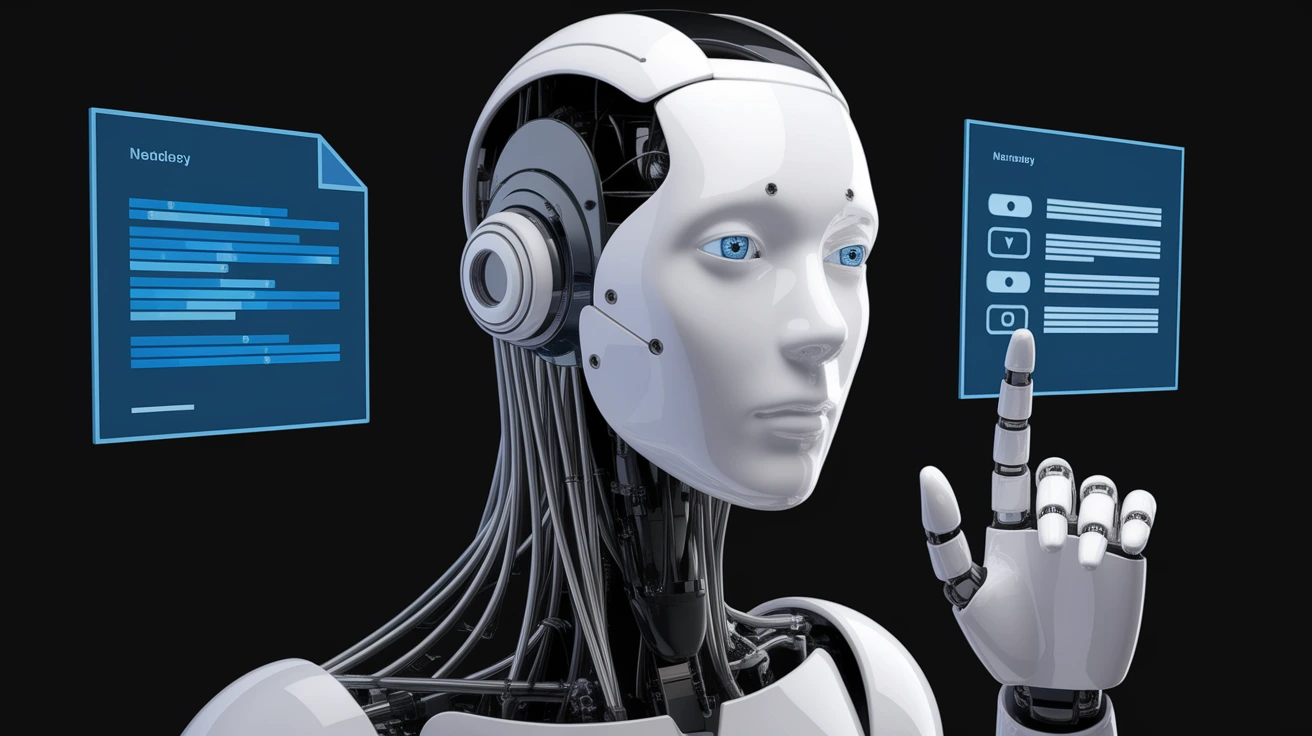
When people search for the best AI as good as ChatGPT that makes Word documents, they usually want more than a chatbot that can write paragraphs. They want an AI assistant that can create a useful document, structure it professionally, revise sections, work with existing files, and ideally export or edit content in a Microsoft Word-friendly workflow.
In 2026, several platforms can do much of this. Microsoft Copilot in Word is the most direct option because it works inside Word itself and can draft, rewrite, summarize, and refine documents. Google Gemini in Docs is another strong option for users who prefer Google Workspace, while standalone AI systems can also help create structured content that can later be moved into Word. Microsoft says Copilot can create drafts from prompts, files, emails, or meetings, while Google says Gemini in Docs can generate personalized documents using information from Drive, Gmail, and the web.
The right choice depends on whether your priority is native Word editing, document creation, research, formatting, collaboration, cost, or AI flexibility.
What Makes an AI Good for Creating Word Documents?
A strong document-creation AI needs more than good writing ability. It should understand document structure, headings, tone, formatting requirements, and the intended audience.
For example, creating a business proposal requires different behavior from creating a school report or project plan. A useful tool should be able to follow instructions about length, sections, style, and source material without turning the document into an unstructured block of text.
Microsoft Copilot is particularly strong in this area because it operates directly in Word. Microsoft says Copilot can start a draft, base a document on a file, email, or meeting, add content to an existing document, rewrite passages, and summarize long documents.
Google Gemini takes a similar approach inside Google Docs. Google says Gemini can create personalized documents, use references from Drive and Gmail, match an existing document’s format, and adapt writing style.
The best AI document tool therefore combines writing intelligence with document awareness.
Microsoft Copilot in Word as a ChatGPT Alternative
For someone specifically looking for an AI that creates Microsoft Word documents, Copilot is one of the most natural alternatives to ChatGPT.
Copilot is integrated directly into supported Microsoft 365 versions of Word. Microsoft says users can start a document from a prompt, use existing files as sources, refine text, and work directly in the original document instead of copying content between applications.
This native integration is a major advantage. If your final destination is already Word, you can stay in the same application throughout the workflow.
For example, you could ask Copilot to create a project proposal with an executive summary, objectives, timeline, risks, and next steps. You can then continue editing the same document and ask Copilot to refine specific sections.
Microsoft also says Copilot can use broader work context, including files, emails, and meetings, when available.
For Word-focused users, native integration is one of Copilot’s biggest strengths.
Google Gemini in Docs for AI Document Creation
Google Gemini in Docs is another strong choice, particularly for people who work primarily within Google Workspace.
Google’s current documentation says Gemini in Docs can generate first drafts, reference files from Drive, Gmail, and the web, match a document’s format, and adapt to an existing writing style.
That makes Gemini useful for creating documents such as proposals, project plans, reports, blog posts, summaries, and other structured content.
One particularly useful feature is the ability to reference an existing document’s formatting and writing style. Google explains that users can select an existing Google Doc and ask Gemini to create new content based on that document’s layout, style, and structure.
Gemini can also pull information from connected Google sources. Google says users can reference other files when asking Gemini to write, edit, or refine content.
For users already comfortable with Google Docs, Gemini can therefore provide a document-native AI workflow similar in spirit to Copilot in Word.
How AI Document Tools Compare With ChatGPT
ChatGPT is highly flexible for drafting and organizing information, but a direct comparison depends on the final output you need.
If your primary task is brainstorming, outlining, rewriting, explaining, or generating content, a general-purpose AI assistant can be extremely useful.
If the main goal is creating and editing a Word document inside Word, Microsoft Copilot has an obvious advantage because the AI is built into the document editor.
Google Gemini has a similar advantage for people who use Google Docs. It can create content in the document and use connected Workspace context.
The distinction is therefore less about which model can write the best paragraph and more about where the AI fits into your workflow.
A useful way to think about the choices is:
Chat-based AI = flexible content generation
Word-native AI = document creation and editing inside Word
Docs-native AI = document creation and collaboration inside Google Workspace
No single option is perfect for every workflow.
Important Features to Look for in an AI Word Document Tool
The first feature to examine is document generation. Can the AI create a structured document instead of merely producing text?
Second, check editing capabilities. Good tools should let you rewrite, expand, shorten, simplify, or change the tone of selected content.
Third, look for source integration. A tool becomes much more useful when it can use an existing file or reference material instead of requiring you to paste everything manually.
Microsoft says Copilot in Word can create documents from prompts, outlines, notes, referenced files, emails, or meetings.
Google similarly allows Gemini in Docs to reference files and use formatting or writing style from existing documents.
Also consider format preservation, document collaboration, summaries, images, export options, and availability across desktop and mobile devices.
The best tool is the one that handles both content and document structure effectively.
How to Create a Professional Word Document With AI

The quality of an AI-created document depends heavily on how clearly you describe the desired result.
Instead of asking, “Write a report,” specify the purpose, audience, length, structure, tone, and source material.
For example, a better instruction would be:
“Create a professional five-page project report for a small business audience. Include an executive summary, project goals, current status, risks, recommendations, and next steps. Use clear headings and concise paragraphs.”
Microsoft specifically recommends giving Copilot detailed prompts and providing an outline or source material when possible.
Google provides similar advice for Gemini in Docs, recommending natural-language prompts with sufficient context and encouraging users to refine the result through follow-up prompts.
A reliable workflow is:
Define the goal → provide context → request the structure → review the first draft → refine sections → check facts → finalize formatting.
That process usually produces better results than expecting one prompt to create a perfect document immediately.
AI Tools for Reports, Essays, Proposals, and Business Documents
Different document types require different approaches.
For reports, AI can help create summaries, organize findings, and structure recommendations. Users should verify figures, sources, and conclusions before treating the report as final.
For essays, AI can help with brainstorming, outlines, explanations, and language improvement. Academic users should always follow their school’s or institution’s rules regarding AI assistance.
For business proposals, AI can accelerate document structure and professional wording. A user can provide notes about goals, audience, budget, and timeline and then refine the generated proposal.
For project plans, AI can create sections such as objectives, milestones, responsibilities, risks, and next steps.
For meeting documents, Microsoft says Copilot can use meeting context and other work information when creating documents, which can help connect conversations to formal written outputs.
The practical advantage is not only faster writing. It is turning unstructured information into a usable document.
AI Document Creation With Existing Files and References
One of the strongest developments in modern productivity AI is the ability to create new documents from existing material.
Instead of starting from a blank page, you can provide an earlier proposal, notes document, meeting summary, spreadsheet, or reference file and ask the AI to create something new from it.
Google’s Gemini in Docs specifically supports referencing documents from Drive and matching the format or writing style of an existing document.
Microsoft Copilot similarly supports drafting from files, emails, and meetings.
This is important because many real-world documents are not created from nothing. They are based on existing information that must be reorganized.
For example, a manager could turn meeting notes into a project update, or a business could turn an internal brief into a client-facing proposal.
AI is especially useful when the challenge is not writing but transforming information from one format into another.
Free vs Paid AI Tools for Word Documents
Whether an AI document tool is free depends on the specific product, plan, and features you need.
Microsoft’s current documentation says Copilot capabilities in Word depend on an eligible Microsoft 365 subscription and, for some features, an appropriate Copilot license.
Google similarly notes that several Gemini document features require an eligible Google Workspace or Google AI plan, although some features may also appear through testing programs.
Free AI services can still be useful for drafting text, outlining documents, brainstorming, and rewriting. The limitation is that they may not provide the same level of native Word integration or advanced document controls.
Before paying for an AI tool, determine whether you actually need native document creation, connected file access, higher usage limits, or advanced editing features.
For occasional users, a general-purpose free AI assistant plus Word or Google Docs may be sufficient.
For frequent professional use, an integrated productivity AI can save more time.
Privacy and Security When Creating Word Documents With AI
Privacy is an important consideration whenever you upload or reference documents.
A Word file may contain business information, personal details, financial information, unpublished research, or other sensitive material. Before sending such content to an AI system, understand what data the service can access and what controls apply.
Microsoft says Copilot can work with files, emails, and meetings when supported by the user’s environment, which makes access controls especially important.
Google’s document tools can similarly use information from Drive and Gmail when the user provides or enables that context.
Use the principle of minimum necessary access. Give the AI only the information needed for the task.
For sensitive work, also check your organization’s AI policies before connecting business documents or accounts.
AI productivity can be powerful, but security should remain part of the workflow from the beginning.
Common Mistakes When Using AI to Make Word Documents
The first mistake is assuming the first draft is finished.
AI can generate well-structured prose, but it may still include incorrect facts, weak arguments, repetition, or formatting problems. A human review remains important.
Another mistake is providing too little context. A vague request usually creates a generic document.
A third mistake is ignoring the target audience. A document for executives should sound different from one written for technical staff or students.
Users should also avoid allowing AI to invent sources or facts. Important claims should be checked against reliable information.
Finally, do not rely completely on automatic formatting. Review headings, spacing, page breaks, references, tables, images, and other document elements before sharing the final file.
The best approach is AI for speed, human review for accuracy and quality.
Best AI Tool by Use Case
For users whose main requirement is Microsoft Word document creation, Microsoft Copilot is a natural first choice because it works directly inside Word and supports drafting, editing, refinement, summarization, and work-context integration.
For users who prefer Google Docs, Gemini is a strong alternative. It can create personalized documents, reference Drive and Gmail, match formatting and writing style, and refine existing content.
For general brainstorming and flexible content generation, a standalone conversational AI can still be useful. The document can then be moved into Word for final formatting.
For people who want to create documents from multiple source files, a tool with strong file and workspace integration may be more valuable than one that simply generates polished prose.
The important distinction is workflow fit. Choose the tool based on where you work and what you need the document to do.
Tips for Getting Better Results From AI Word Document Tools

Start with a clear purpose. State what the document is supposed to accomplish.
Give the AI relevant context, including the audience, desired tone, approximate length, required sections, and source material.
Ask for a structured first draft rather than a perfect final document. Then refine it in stages.
Microsoft recommends giving Copilot detailed instructions and providing outlines or source material. (Microsoft Support) Google similarly recommends iterative prompting and supplying references for Gemini in Docs.
A useful sequence is:
Outline → draft → improve structure → refine language → verify facts → format → proofread.
This makes it easier to catch mistakes and maintain control over the final result.
Another useful habit is to save your strongest prompts. Once you find a prompt that reliably creates the structure you need, reuse and improve it.
Latest Trends in AI Document Creation
The biggest trend is the move from text generation to document intelligence.
Modern AI tools increasingly understand files, formatting, style, workspace context, and existing documents. Google Gemini can reference files and match document formatting, while Microsoft Copilot can use files, emails, and meetings when creating or refining Word content.
Another trend is AI working directly inside productivity software instead of operating as a separate chat window.
Microsoft’s newer Copilot experiences allow users to create and edit documents directly in Word, while Google continues expanding AI features throughout Docs and Workspace.
AI systems are also becoming more multimodal. Google Gemini in Docs can generate images for documents, while Microsoft 365 Copilot supports broader content creation workflows.
The future of AI document creation is therefore likely to involve content, formatting, source information, visuals, and workflow automation working together.
Future of AI Tools That Make Word Documents
The next generation of AI document tools is likely to become more autonomous.
Instead of asking an assistant to write one paragraph, users may increasingly describe an outcome such as “create a complete project proposal using these five files and match the style of our previous proposal.”
The AI can then gather relevant information, create a structure, draft content, format the document, and prepare it for review.
Microsoft’s current Copilot direction already points toward this model. Its documentation describes AI that can create, edit, refine, and comprehend documents while using broader work context.
Google’s Gemini workflow similarly emphasizes personalized documents based on existing files and writing styles.
The challenge will be reliability. The more tasks AI performs automatically, the more important fact checking, source transparency, permissions, revision history, and human approval become.
The strongest future tools will not merely write faster. They will help users create better documents while keeping people in control.
Conclusion
The best AI as good as ChatGPT that makes Word documents depends largely on where and how you work.
For Microsoft Word users, Microsoft Copilot is one of the strongest choices because it operates directly inside Word and can draft, rewrite, summarize, refine, and work from files, emails, and meetings when supported.
For Google Workspace users, Gemini in Google Docs provides a powerful alternative with personalized document creation, file references, writing-style matching, and document-format support.
Standalone AI assistants remain useful when you want flexible brainstorming, outlining, research support, and content generation before moving the final material into Word.
The most important lesson is that AI quality is only one part of the decision. Native document integration, source handling, formatting, privacy, editing controls, and workflow convenience can matter just as much.
Start with the tool that fits your existing workflow, provide clear instructions, review the generated content carefully, and use AI as a productivity partner rather than a replacement for judgment.
That approach provides the best balance of speed, creativity, efficiency, and document quality.
Frequently Asked Questions
What is the best AI for making Word documents?
For users who specifically want to create and edit documents inside Microsoft Word, Copilot is one of the most direct options because it is integrated into Word and supports drafting, editing, refinement, and document summarization.
Is there an AI as good as ChatGPT that can make Word documents?
Yes. Microsoft Copilot and Google Gemini are strong alternatives for document-focused workflows. Copilot works directly with Word, while Gemini works directly with Google Docs and can create personalized documents from connected sources.
Can ChatGPT create a Word document?
Chat-based AI can generate document content and structure, but the exact ability to produce or download a Word-compatible file depends on the available features and interface. For a native Word workflow, Copilot provides direct integration inside Microsoft Word.
Can Microsoft Copilot write an entire Word document?
Copilot can start a draft from a prompt and create content based on provided context, outlines, or referenced material. Microsoft recommends reviewing and refining the generated draft rather than treating it as automatically final.
Can Gemini create documents in Google Docs?
Yes. Google says Gemini in Docs can generate first drafts, create personalized documents, reference files, match document formatting, and adapt writing style.
Can AI make a professional business report in Word?
Yes. AI can create a structured report containing sections such as an executive summary, findings, recommendations, risks, and next steps. Users should verify facts, figures, sources, and conclusions before sharing the final report.
Can AI create a Word document from another file?
Yes. Microsoft says Copilot can base a new Word document on an existing file, email, or meeting. Google Gemini can also reference existing files and use their content, formatting, or writing style when creating a document.
Is Microsoft Copilot free?
Availability depends on the Microsoft 365 subscription and Copilot license. Microsoft says some Copilot features require an eligible subscription or license.
Is Gemini in Google Docs free?
Several Gemini document features require an eligible Google Workspace or Google AI plan, although Google also offers some features through testing programs.
Which AI is best for creating documents from existing information?
Tools with strong workspace integration are generally the most useful. Copilot can work with Word documents and supported Microsoft work context, while Gemini can reference Google Drive, Gmail, and other connected sources.
How can I get better AI-generated Word documents?
Provide clear instructions about the document’s purpose, audience, structure, length, tone, and source material. Then review the first draft and use follow-up prompts to refine it. Both Microsoft and Google recommend giving AI sufficient context and iterating on the result.
Should I trust an AI-generated document without checking it?
No. AI can produce incorrect facts, weak reasoning, missing context, or formatting mistakes. Important documents should receive human review before they are submitted, published, or shared.