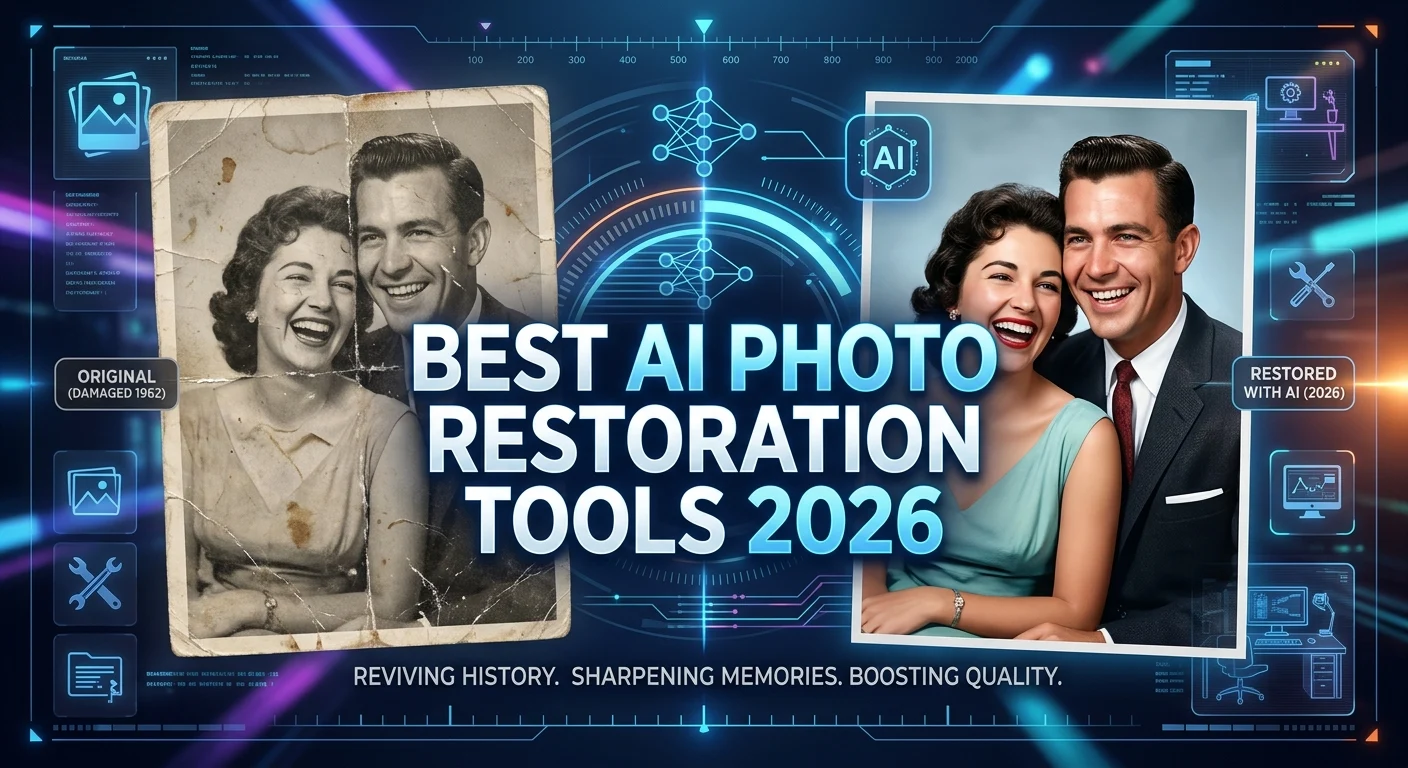
Old photographs can preserve family memories, historical moments, and personal stories, but time can leave them faded, scratched, blurry, discolored, or damaged. The best AI photo restoration tools 2026 can make this recovery process faster and easier by using artificial intelligence to improve details, reduce damage, sharpen faces, restore colors, and increase image resolution.
Modern AI restoration combines innovation, automation, productivity, creativity, and practical image enhancement in a single workflow. Instead of spending hours manually repairing every small defect, users can often achieve a strong first result with a few clicks.
Tools such as Photoshop, Topaz Labs, MyHeritage, and Remini approach restoration differently. Some provide detailed manual control, while others focus on quick automated enhancement.
The right choice depends on the condition of your photo, your skill level, your budget, and whether you need simple enhancement or professional restoration control.
What Are the Best AI Photo Restoration Tools 2026?
AI photo restoration tools use machine-learning models to analyze damaged or low-quality images and generate an improved version. They can identify patterns such as blur, noise, scratches, faded colors, and low-resolution facial details.
Unlike traditional editing, AI restoration can automate parts of the process that once required detailed manual retouching. A user can upload an old photograph, apply an AI restoration model, and receive an enhanced version much faster than with a completely manual workflow.
The exact capabilities vary between platforms. Topaz Labs, for example, focuses strongly on restoration, sharpening, damage repair, and enlargement. Its current online restoration tool can address blur, dust, damage, facial detail, and low-resolution images.
Adobe Photoshop takes a broader approach. Its Neural Filters use machine learning for corrective and creative effects, including photo restoration and colorization workflows.
How AI Photo Restoration Works
AI photo restoration generally begins by analyzing the visual information contained in an image. The model looks for patterns that indicate blur, noise, scratches, missing detail, poor resolution, or color degradation.
The software then estimates how the image could look after correction. Depending on the tool, it may sharpen important areas, reduce noise, reconstruct facial detail, repair damaged regions, increase resolution, or restore colors.
This process is different from simply making an image brighter or sharper. Modern AI models can generate plausible visual information when the original image contains very little detail.
That is also the most important limitation to understand. If a photograph has extremely poor information, the AI may create a visually convincing detail that was not actually recoverable from the original. MyHeritage specifically notes that enhanced facial details are algorithmic simulations and can sometimes be inaccurate or distorted.
For historically important photographs, always preserve the original file and treat the restored version as an enhancement rather than unquestionable evidence.
Key Features to Look for in AI Photo Restoration Software
The first feature to examine is restoration quality. A good tool should improve the image without creating excessive artificial texture, plastic-looking faces, or strange details.
Face enhancement is particularly important for old family photographs. Small faces often contain very little usable information, so an AI system needs to improve clarity carefully.
Other useful features include:
- Scratch and crease removal
- Dust and stain removal
- Blur reduction
- Noise reduction
- Face enhancement
- Image upscaling
- Color restoration
- Black-and-white colorization
- Batch processing
- Before-and-after comparison
- Manual adjustment controls
- Non-destructive editing
- High-resolution export
For example, MyHeritage’s Photo Repair can detect scratches and damage and offers Gentle Repair and Extensive Repair models.
For advanced users, control is just as important as automation. Photoshop provides different output options for Neural Filters, including new layers, masked layers, and Smart Filters, allowing more flexible editing workflows.
Best AI Tools for Restoring Old and Damaged Photos
Different tools are suited to different restoration goals. There is no single application that is automatically the best for every photograph.
Topaz Labs is particularly useful when you want automated restoration, sharpening, facial detail recovery, damage repair, and enlargement. Its current online tool is designed specifically for old, faded, blurry, and damaged photographs.
Adobe Photoshop is a strong choice when restoration needs both AI assistance and manual editing. Its Neural Filters provide AI-powered corrective tools, while Photoshop’s broader editing environment gives users much more control over individual areas.
MyHeritage is especially relevant for family-history photographs. Its Photo Enhancer focuses on increasing resolution and improving faces, while Photo Repair handles scratches and other physical-looking damage. Its Reimagine app combines scanning, enhancement, colorization, and repair features for historical photos.
Remini focuses heavily on simple AI enhancement and facial restoration. Its photo-restoration service is designed to improve old, faded, degraded, and blurry images, including group portraits.
The best option depends on whether your priority is professional control, automatic restoration, family-history preservation, or quick mobile enhancement.
AI Photo Restoration for Family and Historical Pictures
Family photographs are one of the most meaningful applications of AI restoration. Old wedding pictures, childhood photographs, portraits, and group photographs can become clearer while preserving important visual memories.
Historical images can also benefit from enhancement. However, users should distinguish between restoration and reconstruction. An AI model may make a face clearer by generating details that were not visible in the original.
MyHeritage emphasizes this distinction by explaining that its enhancement technology uses algorithms to infer what blurry faces may have looked like.
For valuable family archives, keep three versions whenever possible: the original scan, the restored version, and a backup copy. This protects the source image while allowing you to experiment with different restoration settings.
If you scan a physical photograph yourself, scan it at the highest practical resolution. MyHeritage also recommends using high-resolution scanning to maximize enhancement quality.
AI Photo Restoration for Faces and Portraits
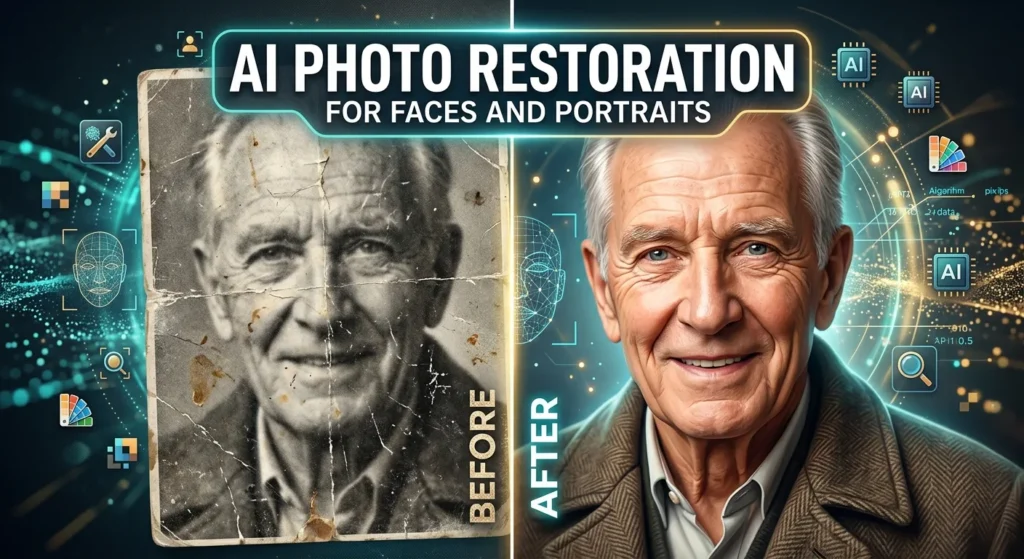
Faces are often the most important part of an old photograph, but they can also be the hardest to restore. Small portraits may contain only a few pixels across important facial features.
AI face restoration attempts to infer missing or unclear information and produce a sharper-looking result. This can be especially useful for old group photographs where several people appear in the same frame.
Topaz Labs describes its face recovery feature as detecting faces and reconstructing natural-looking detail from small or degraded originals.
However, users should avoid assuming that every reconstructed facial detail is historically accurate. A sharper face is not necessarily a perfectly recovered face.
For personal photographs, a visually pleasing result may be enough. For historical research, identification, or archival work, always compare the enhanced version against the original and avoid presenting AI-generated facial details as verified facts.
AI Colorization and Black-and-White Photo Restoration
Colorization can transform the appearance of an old black-and-white photograph. AI models analyze the image and estimate plausible colors based on patterns, objects, lighting, and learned visual relationships.
This can create a powerful way to visualize historical photographs. MyHeritage, for example, allows users to combine Photo Enhancer with its In Color technology.
But colorization is an interpretation, not a guaranteed recovery of the original colors. A shirt, building, vehicle, or background may receive a plausible color that differs from what existed in the original scene.
For this reason, keep the black-and-white original alongside the colorized version. If accuracy matters, label the colorized file clearly so viewers know that the colors were AI-generated.
Colorization works particularly well when combined with resolution enhancement and careful manual correction.
Free vs Paid AI Photo Restoration Tools
Free restoration options can be useful for beginners who want to test AI enhancement without making a large investment. They are also practical for occasional projects involving only a few photographs.
Paid tools generally provide more advanced capabilities, higher usage limits, better export options, stronger editing controls, or professional workflows. The exact benefits depend on the platform and plan.
MyHeritage currently provides some Photo Repair functionality for free, while additional repairs require a Complete subscription.
Before paying for any service, test several representative photographs. A tool that performs beautifully on one image may produce weaker results on another.
Choose based on output quality rather than price alone. For occasional family restoration, a simple tool may be enough. For professional photo work, advanced controls can justify a paid solution.
AI Photo Restoration Pricing and Value
The cost of AI restoration can vary from free or limited-use services to professional software and subscription platforms.
Instead of asking only, “Which tool is cheapest?” consider the total value of the workflow. A tool that saves hours of manual work can be more valuable than a cheaper tool that produces poor results and requires extensive correction.
For example, someone restoring 10 family photographs may prefer an easy automated service. A photographer restoring hundreds of images may benefit from software with advanced controls, batch processing, and high-quality exports.
Topaz Labs highlights automated restoration as a way to process collections much faster than traditional per-photo retouching workflows.
When evaluating pricing, check usage limits, export resolution, watermark rules, processing speed, supported devices, and commercial-use conditions before committing.
Mobile AI Photo Restoration Apps
Mobile restoration is increasingly useful because users can scan, enhance, and organize photographs directly from a smartphone.
MyHeritage’s mobile app supports Photo Enhancer and Photo Repair, and the company recommends using its scanner at the highest resolution possible.
Mobile workflows are especially convenient for family albums. Instead of removing every photograph from an album and sending it to a professional, users can digitize selected images and begin restoration from a phone.
However, phone cameras introduce challenges. Poor lighting, reflections, perspective distortion, and low capture resolution can reduce restoration quality.
For better results, place the photograph flat, use even lighting, avoid reflections, keep the camera parallel to the image, and capture the highest-resolution file available.
AI Restoration vs Traditional Photo Editing
Traditional restoration gives the editor detailed control over every part of an image. A skilled retoucher can manually remove scratches, rebuild damaged areas, adjust colors, and carefully preserve important details.
AI restoration is faster. It can handle repetitive tasks and provide a strong starting point within seconds or minutes.
The most effective workflow is often AI first, manual refinement second. Let AI handle repetitive enhancement, then inspect the output carefully and correct problems manually.
Photoshop is particularly suitable for this hybrid approach because Neural Filters can be applied through different output methods, including non-destructive Smart Filters and masked layers.
This combination provides automation without giving up creative control.
Pros and Cons of AI Photo Restoration
AI restoration offers major advantages. It is fast, accessible, and capable of improving images that would be difficult for beginners to repair manually.
It can also make restoration more affordable. Someone with limited editing experience can often achieve a useful result without learning every advanced Photoshop technique.
The disadvantages are equally important. AI can create unrealistic details, alter facial characteristics, over-sharpen textures, or produce results that look artificial.
AI restoration does not magically recover information that no longer exists. When an original photograph contains almost no usable detail, the software must estimate what should appear there.
Another issue is consistency. Different tools can produce noticeably different results from the same photograph. Always compare outputs and select the version that looks natural and remains faithful to the source.
Common AI Photo Restoration Mistakes and Best Practices
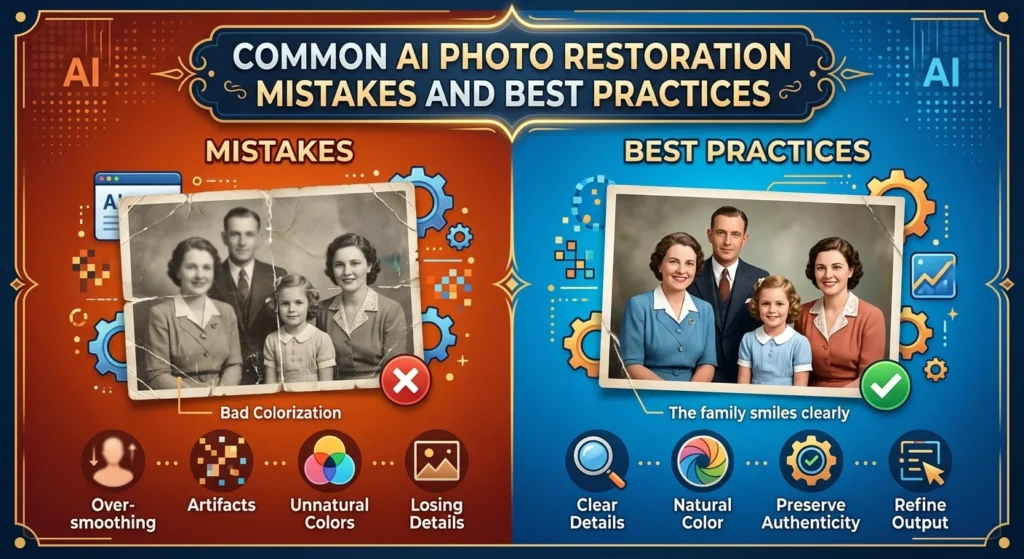
One of the biggest mistakes is uploading a low-quality photograph and expecting perfect results. AI works better when the input contains as much useful information as possible.
Another mistake is over-processing. Excessive sharpening can make skin look unnatural, while aggressive face enhancement can change the appearance of a person.
Avoid replacing the original file. Always create a copy before restoration. MyHeritage specifically designs its restoration workflow so that the original remains intact while the improved version is stored separately.
A practical restoration workflow is:
Scan or photograph carefully → save the original → create a backup → apply gentle AI restoration → compare before and after → refine manually if needed → export a high-quality copy.
For important historical images, keep notes about which tool and settings you used. This creates a simple restoration record that can help others understand how the final image was produced.
Latest AI Photo Restoration Trends and Future Developments
AI photo restoration is moving beyond basic sharpening. Current tools increasingly combine upscaling, facial enhancement, damage repair, colorization, scanning, and intelligent editing into connected workflows.
MyHeritage’s Reimagine platform, for example, combines album scanning, resolution enhancement, colorization, scratch and crease repair, and other AI photo features.
Another important development is greater emphasis on user control. Rather than applying one automatic effect, future restoration systems are likely to give users more ways to control how aggressively AI reconstructs faces, textures, colors, and damaged regions.
The technology will also become more useful for large archives. Museums, family-history projects, photographers, and digital archives can benefit from automated processing while still requiring human review for important materials.
The biggest challenge will remain authenticity. As AI becomes better at generating realistic details, users will need clearer ways to distinguish restored information from AI-inferred information.
The future of photo restoration is therefore not simply about making old photographs look sharper. It is about combining automation with transparency, preservation, human judgment, and responsible digital archiving.
Conclusion
The best AI photo restoration tools 2026 can make old and damaged photographs clearer, sharper, and easier to preserve. They can reduce blur, repair scratches, enhance faces, increase resolution, restore colors, and simplify tasks that once required advanced editing skills.
Topaz Labs is a strong option for dedicated restoration and enhancement, while Photoshop provides a powerful combination of AI assistance and detailed manual control. MyHeritage is particularly useful for family-history collections, and Remini offers a simple approach to AI photo enhancement.
The most important rule is simple: always protect the original photograph. AI restoration can create impressive results, but some reconstructed details are estimates rather than guaranteed recovery.
For the best results, start with the highest-quality scan possible, use gentle enhancement first, compare multiple results, and manually correct anything that looks unnatural. When used carefully, AI can become a powerful tool for preserving memories while respecting the history contained in the original image.
Frequently Asked Questions
What is the best AI photo restoration tool in 2026?
There is no single best tool for every photograph. Topaz Labs is strong for dedicated restoration, Photoshop is useful for advanced editing control, MyHeritage is well suited to historical family photographs, and Remini focuses on easy AI enhancement.
Can AI restore very old photos?
Yes. AI can improve many old photographs affected by blur, fading, scratches, noise, and low resolution. However, severely missing information may require AI-generated reconstruction rather than true recovery.
Can AI remove scratches from old photographs?
Yes. Modern restoration tools can automatically detect and repair many scratches, stains, creases, and similar defects. MyHeritage’s Photo Repair specifically targets scratches, tears, holes, stains, and other damage.
Can AI restore faces in blurry photos?
AI can enhance facial details in many blurry or low-resolution photographs. However, the result may include algorithmically reconstructed details, so it should not automatically be treated as an exact representation of the original face.
Can AI colorize black-and-white photos?
Yes. AI colorization can estimate realistic-looking colors for black-and-white photographs. The result should be treated as an interpretation unless the original colors are independently documented.
Should I scan an old photo before restoring it?
Yes. A high-quality digital scan usually provides a better starting point than a low-resolution photograph of a print. MyHeritage recommends scanning at the highest resolution possible for better enhancement results.
Is AI photo restoration better than Photoshop?
Not necessarily. AI tools are usually faster and easier for automated restoration, while Photoshop provides greater manual control. A hybrid workflow can combine AI automation with detailed editing.
Can AI restoration damage the original photograph?
A properly designed digital workflow should not modify the original file. Keep a separate copy for restoration and maintain an untouched backup. MyHeritage explicitly states that its enhancement and repair workflows keep the original intact.
Are free AI photo restoration tools good enough?
Free tools can be sufficient for casual projects and testing. For difficult restoration work, higher-quality models and advanced editing controls may provide better results.
What is the best way to get realistic AI photo restoration results?
Start with a high-quality scan, preserve the original, use moderate restoration settings, compare before and after results, and manually correct unnatural areas. Avoid excessive sharpening or facial reconstruction.